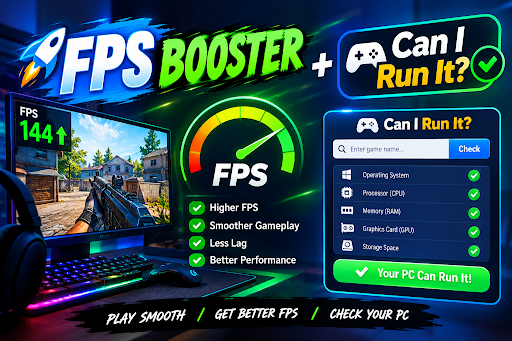

A pleasurable gaming experience requires fluid gameplay. However, many players experience low frame rates, stuttering, long loading times, and unexpected lag when running demanding games on their computers. These problems can make even an exciting game frustrating. An FPS Booster can help improve gaming performance by reducing unnecessary background activity and optimizing available system resources. But before choosing any optimization tool, gamers should understand their computer’s capabilities and ask an important question: Can I run it?
Knowing whether your PC meets a game’s requirements is the first step toward better performance. While an FPS booster may help improve responsiveness, it cannot completely overcome hardware limitations. This guide explains how FPS boosters work, how to check game compatibility, and which practical steps can help you enjoy smoother gameplay.
What Is an FPS Booster?
An FPS Booster is a software utility or optimization method designed to help a computer run games more efficiently. FPS stands for frames per second, which measures how many individual frames your computer displays every second. Higher frame rates generally produce smoother motion, particularly in competitive games that require quick reactions.
For example, a game running at 25 FPS may feel noticeably less responsive than the same game running at 60 FPS. However, the actual experience also depends on frame-time consistency, monitor refresh rate, and input latency.
FPS boosters commonly focus on reducing unnecessary background processes, managing startup applications, adjusting system settings, and helping users identify performance bottlenecks. While some solutions only automate changes that users could make manually, others provide handy optimization features in a single interface.
It is important to remember that results vary depending on your hardware, operating system, game, and current system configuration.
Can I Run It? Understanding Game Requirements
Before installing an FPS booster, determine whether your computer can run the game you want to play. The question Can I run it usually refers to checking your PC specifications against a game’s minimum and recommended system requirements.
Minimum requirements describe the basic hardware needed to run a game under supported conditions. Recommended requirements generally indicate a more suitable configuration for a better experience, although they do not guarantee a particular frame rate.
The main specifications to check include:
- Processor (CPU): Handles game logic, calculations, artificial intelligence, and other tasks.
- Graphics card (GPU): Renders visual effects, textures, lighting, and three-dimensional environments.
- RAM: Provides working memory for the game and other running applications.
- Storage: An SSD can improve loading times compared with many traditional hard drives.
- Operating system: Some games require a specific Windows version or other supported platform.
- DirectX support: Some games require specific hardware and graphics APIs.
You can find your system specifications through Windows Settings, Task Manager, or the DirectX Diagnostic Tool. Then compare them with the requirements listed on the game’s official store page or publisher website.
If your PC falls below the minimum requirements, an FPS booster is unlikely to make the game run reliably. If your hardware meets the recommended requirements but performance remains poor, optimization may help.
How an FPS Booster Can Improve Gaming Performance
An FPS booster can be useful when unnecessary software consumes resources that your game needs. Understanding its potential benefits helps you decide whether optimization is worth trying.
1. Reduce Background Processes
Applications running in the background may consume CPU time, memory, and storage bandwidth. Browser tabs, launchers, update utilities, and unnecessary applications can compete with your game for resources.
Closing applications you do not need can free up some system capacity. Certain FPS boosters make this process easier by identifying background tasks and providing shortcuts for managing them.
But just because a tool says something is useless doesn’t mean you should stop important Windows services or unknown processes.
2. Manage Startup Applications
Some programs launch automatically when Windows starts. Over time, these applications can increase background activity and consume memory.
Reviewing startup applications in Task Manager can help reduce unnecessary resource usage. Although this adjustment may not directly increase FPS in every game, it can improve general system responsiveness and reduce avoidable background activity.
3. Adjust Graphics Settings
Sometimes, the biggest performance improvement comes from changing the game’s graphics settings rather than installing additional software.
Lowering demanding options such as shadows, reflections, ambient occlusion, and volumetric effects can reduce GPU workload. Reducing resolution may also increase frame rates, although it makes the image less sharp.
An FPS booster may provide recommendations, but manually adjusting graphics settings lets you balance visual quality and performance according to your preferences.
4. Help Identify Performance Problems
Finding the real bottleneck is the first step in an effective optimization process. If the CPU is heavily loaded, reducing graphics quality may not solve the problem. If the GPU is operating near full capacity, lowering demanding visual settings may be more effective.
Monitoring CPU usage, GPU utilization, temperatures, RAM consumption, and frame times can reveal what limits performance.
An FPS booster is most useful when it addresses a genuine resource problem instead of applying random system changes.
FPS Booster vs. Hardware Upgrades
Software optimization and hardware upgrades serve different purposes. Understanding their limitations prevents unrealistic expectations.
For a computer with limited RAM, closing unnecessary applications may reduce memory pressure. However, it cannot provide the same benefits as installing additional compatible memory when the system genuinely needs it.
Similarly, reducing graphics settings may help an older graphics card deliver playable frame rates, but software cannot transform it into a powerful modern GPU.
In certain scenarios, an SSD can speed up loading times and enhance responsiveness, but it doesn’t always raise average frame rates in games. A faster processor or graphics card may provide a more substantial improvement when existing hardware is the main limitation.
Therefore, before investing in expensive software or hardware, begin with free optimization techniques.
Best Practices for Using an FPS Booster
To get the most from an FPS booster, follow a careful and measurable approach.
First, record your current performance in a game. Note the average FPS, occasional drops, loading times, and any noticeable stuttering. Use the same game settings and a similar gameplay section when comparing results.
Next, close unnecessary applications and check whether performance improves. Update your graphics drivers through the official NVIDIA, AMD, or Intel website or supported update utility. Keep Windows updated and verify that your PC has adequate cooling.
If you use a laptop, check its power mode and make sure demanding games use the appropriate graphics processor when applicable. Keep the device on a suitable surface so that ventilation is not blocked.
Install optimization software only from a trusted source. Be cautious of tools that promise enormous FPS increases, require disabling security protections, or recommend modifying critical system settings without a clear explanation.
After making changes, test the same game again. If performance becomes worse or new problems appear, reverse the adjustments where possible.
Common FPS Booster Myths
Several misconceptions surround gaming optimization software.
One common myth is that every FPS booster automatically doubles performance. In reality, improvements depend on the computer’s existing condition and the game’s requirements. A system already running efficiently may show little or no improvement.
Another misconception is that more free RAM always means higher FPS. Additional available memory can help when RAM is a bottleneck, but it does not directly increase graphics processing power.
Some players also believe that disabling antivirus protection will significantly improve gaming performance. This is not a recommended general optimization method because it can expose the computer to security risks.
Finally, FPS and internet lag are different problems. An FPS booster may help with local rendering performance, but it generally cannot fix a poor internet connection, high ping, or unstable network routing.
Conclusion
An FPS Booster can be a helpful option for gamers who want to reduce unnecessary background activity and make better use of their computer’s available resources. Nevertheless, understanding your hardware remains essential before expecting noticeable improvements.
When asking Can I run it compare your processor, graphics card, RAM, storage, and operating system with the game’s published requirements. Then identify whether your performance problems come from limited hardware, demanding graphics settings, background applications, overheating, or network issues.
Start with safe, free adjustments and measure the results before purchasing optimization software. With realistic expectations and the right approach, you can make informed decisions about game compatibility and improve your overall gaming experience.