
Screen recording has become an important part of modern digital life. Whether you are creating tutorials, recording gameplay, preparing online lessons, or demonstrating software, a reliable recording tool can make the process much easier. Instead of explaining every step through written instructions, you can capture your screen and show viewers exactly what they need to know.
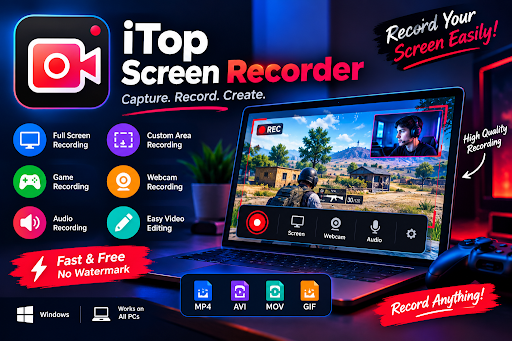
iTop Screen Recorder is a screen recording solution designed for users who want to capture computer activities and create useful video content. It can be helpful for students, teachers, gamers, remote workers, and content creators who need a convenient way to record on-screen activities.
Choosing the right screen recorder depends on several factors, including recording quality, audio support, ease of use, editing options, and compatibility with your computer. Understanding these features can help you decide whether a particular recording tool suits your workflow.
What Is iTop Screen Recorder?
iTop screen recorder is a Windows-based tool designed to record screen activities for different personal and professional purposes. It can help users capture tutorials, presentations, application demonstrations, video calls, and gaming sessions.
For beginners, screen recording software should make the recording process straightforward. A complicated interface can waste time, especially when someone needs to create a quick demonstration or explain a technical problem.
A dedicated recording application provides a more organized way to capture visual information. Depending on the available settings and software version, users can select recording areas, configure audio sources, and adjust video output options.
The tool may also provide additional features for managing recorded videos and preparing content for sharing. Before recording important material, users should review the features available in their installed version and choose settings that match their requirements.
Why Do You Need a Screen Recorder?
A screen recorder can be useful in many situations where visual communication is more effective than written explanations.
1. Create Educational Tutorials
Teachers, trainers, and students can use screen recordings to explain difficult topics. For example, a teacher can demonstrate how to use spreadsheet formulas, while a student can record a presentation explaining a research project.
Recorded lessons also allow viewers to pause, replay, and review important information whenever necessary. This flexibility makes screen recording valuable for online learning and independent study.
2. Record Gameplay
Gaming content has become popular across video-sharing platforms and online communities. Players often record their matches, highlight important moments, or create walkthroughs for challenging levels.
A suitable screen recorder can help capture gameplay alongside system audio and, where supported, microphone commentary. Choosing appropriate frame rates and resolution settings is important for keeping the recording smooth without placing excessive demands on the computer.
Gamers should test their settings before recording a long session because high-quality video capture can consume significant processing power and storage space.
3. Demonstrate Software and Applications
Explaining how a website, application, or computer program operates is a common task for businesses and technology experts. Recording the process makes these demonstrations easier to understand.
For instance, a support specialist can record the steps required to reproduce a software error. A trainer can demonstrate a new workplace application, while a developer can show colleagues how to use a particular feature.
These recordings can reduce repeated explanations and provide useful reference material for future tasks.
4. Improve Remote Communication
Remote teams often communicate through messages, meetings, and shared documents. However, some instructions are difficult to explain without showing the actual process.
A short screen recording can demonstrate a problem, explain a workflow, or provide feedback on a digital project. Team members can watch it at a convenient time instead of arranging another meeting.
When recordings contain confidential business information, users should ensure that the video is shared only with authorized people.
Important Features to Consider in a Screen Recorder
Not every recording application offers the same capabilities. Before selecting a tool, consider the features that matter most to your intended use.
Flexible Screen Capture
The ability to record the full desktop, a selected window, or a specific screen area can be useful for different projects. Full-screen capture works well for presentations and gameplay, while selecting a smaller area helps focus attention on a particular application.
A flexible recording area also makes it easier to avoid capturing unrelated information.
Audio Recording
Clear audio is essential for tutorials, interviews, presentations, and commentary. A useful recording workflow should allow you to configure microphone input and system audio where supported.
Before starting, check microphone levels, reduce background noise, and make sure the correct audio device is selected. A short test recording can help identify problems before they affect an entire video.
Video Quality and Performance
Resolution and frame rate influence the appearance and smoothness of recorded footage. Higher resolutions provide more visual detail, while higher frame rates can make fast-moving content appear smoother.
However, increasing these settings also increases resource consumption and file size. Users with older computers may benefit from testing different configurations to find a suitable balance between quality and performance.
Easy Recording Controls
Simple controls help users start, pause, resume, and stop recordings without unnecessary complications. Clear menus and accessible settings are particularly useful for beginners who do not want to spend hours learning complicated software.
A straightforward interface can also make repeated recording tasks faster and more consistent.
How to Use iTop Screen Recorder to Record Your Screen
Getting started with a screen recording tool is generally simple when you follow a structured process.
Step 1: Install the software. Download iTop screen recorder from its official website and complete the installation process. Review the installation options before proceeding.
Step 2: Choose your recording area. Decide whether you want to capture the entire screen, a particular window, or a selected region. Choose the option that best fits your project.
Step 3: Configure audio settings. Select the appropriate microphone and system audio options if you need narration or application sounds. Check the input levels to avoid distorted audio.
Step 4: Adjust video settings. Choose a suitable resolution, frame rate, and output format based on your computer’s capabilities and the purpose of the recording.
Step 5: Start recording. Open the application, presentation, or game you want to capture. Begin recording and perform the required actions at a comfortable pace.
Step 6: Review and save the video. Stop the recording when you finish. Play the resulting file to check the picture, sound, and overall quality before sharing it.
The exact controls and available options may differ depending on the software version and edition.
Tips for Creating Professional Screen Recordings
Even a capable screen recorder cannot automatically make every video engaging. Good preparation and recording habits can significantly improve the final result.
First, plan your content before pressing the record button. Write a short outline so that you know which steps to demonstrate and which details to explain.
Second, close unnecessary applications and browser tabs. This reduces distractions and may improve performance, especially when recording demanding software or games.
Third, organize your desktop. Hide personal notifications, remove unnecessary windows, and keep the relevant application ready. This makes the recording look more professional and helps protect private information.
Fourth, speak clearly when providing narration. Use a quiet environment and test your microphone before beginning. If your video does not require commentary, check whether system audio alone is sufficient.
Finally, review the complete recording before publishing it. Remove unnecessary sections when editing tools are available, verify that important details remain visible, and confirm that the exported video plays correctly.
Is iTop Screen Recorder Suitable for Beginners?
Users who are new to video creation often benefit from software that combines accessible controls with practical recording options. iTop screen recorder may be worth considering for everyday tasks such as capturing tutorials, demonstrating applications, and recording computer activities.
However, the best choice depends on your needs. Someone creating occasional educational videos may prioritize simplicity, while a professional content creator may require advanced editing, detailed audio controls, or specialized production features.
Before installing any screen recording application, review its current system requirements, pricing, free-version limitations, and supported features. This helps you avoid unexpected restrictions and choose a tool that fits your budget.
You should also respect copyright rules and privacy requirements when recording online meetings, streaming content, or other people’s information. Obtain permission when appropriate and avoid sharing sensitive material without authorization.
Conclusion
Screen recording provides an effective way to communicate ideas, demonstrate software, create educational resources, and share gaming experiences. With the right preparation, users can turn everyday computer activities into clear and helpful videos.
iTop screen recorder is one option for Windows users looking for a practical recording solution. Its suitability depends on the features available in the current version and how well they match your particular workflow.
When choosing a screen recorder, focus on recording quality, audio support, performance, ease of use, and output options. Test your settings, prepare your content, and review each video before sharing it. By following these simple practices, you can create more useful screen recordings for learning, work, and entertainment.