How to Stream Disney Plus on Discord (And Why It’s More Complicated Than Anyone Tells You)
Quick Facts
| Category | Details |
| What You’re Doing | Screen-sharing a Disney+ stream inside a Discord voice channel |
| Main Problem | Disney+ DRM causes a black screen by default |
| The Fix | Disable hardware acceleration in both Discord AND your browser |
| Free Stream Quality | 720p / 30fps max |
| Nitro Stream Quality | Up to 4K / 60fps |
| Max Viewers Per Stream | Up to 50 people in a voice channel |
| Does It Violate Disney ToS? | Technically yes — Disney’s subscriber agreement restricts rebroadcasting |
| Legal Alternative | Disney+ GroupWatch — up to 7 subscribers, completely legal |
| Best Browser to Use | Google Chrome or Microsoft Edge |
| Works on Mobile? | Partially — more limited than desktop |
| App or Browser Better? | Browser wins for this specific use case |
| Discord App Required? | Yes — the web version of Discord won’t let you adjust stream quality |
Nobody warns you about the black screen. That’s the thing. You round up five friends for a Friday movie night on Discord, pull up Encanto, hit screen share, and what your friends see is a perfectly black rectangle while you’re watching totally fine on your end. Full movie. No problem. Just for you. Everybody else gets nothing.
Welcome to DRM. Disney’s gift to people who just wanted to watch something together.
Why This Is Harder Than It Should Be
Here’s the actual technical problem nobody explains upfront.
Disney+ uses something called HDCP — High-bandwidth Digital Content Protection. It’s the industry standard for preventing content from being copied or redistributed. When Discord tries to grab the video frames coming off your screen to share them with friends, Disney’s protection system sees that as an unauthorized capture attempt and shuts it down. The result is a black screen for your viewers even though you’re watching the movie just fine.
Hardware acceleration makes it worse. When your browser uses your GPU to render video — which is the default, and normally a good thing — the video output gets encrypted as it travels to your display. Discord can’t capture encrypted video. So even if DRM didn’t block it, hardware acceleration creates a second wall.
Two separate problems. One deeply annoying result.
See also “Cockatrice OSRS: Underrated, Underhyped, and Built to Humble You“
The Fix That Actually Works: Turn Off Hardware Acceleration Everywhere
Here’s the part most guides bury four paragraphs down. You need to disable hardware acceleration in two places. Both. Not just one.
In Discord: Hit the gear icon at the bottom left. Go to App Settings, then Advanced. There’s a toggle for Hardware Acceleration. Turn it off. Discord will ask you to confirm. Do it. Then fully restart Discord — don’t just close the window, actually quit it from the system tray.
In your browser: This depends on which one you’re using.
In Chrome, click the three dots in the top right corner, go to Settings, then System, and turn off “Use graphics acceleration when available.” Hit relaunch. In Edge, it’s the same three-dot menu, Settings, System and Performance, and the same toggle. In Firefox, go to Settings, General, and scroll to Performance — you’ll see a checkbox for “Use recommended performance settings” that you uncheck first, which reveals the hardware acceleration option underneath.
After you’ve done both, restart everything. Then open your browser, go to Disney+, start playing what you want to watch, and then switch to Discord to begin sharing.
The “Add As Game” Step That Nobody Mentions Until You’re Already Confused
Okay so this is where a lot of people get lost.
When you go to share your screen in Discord’s desktop app, you might notice that your browser window showing Disney+ isn’t appearing as a streamable option the way a game would. Or it shows up but nothing captures correctly. This happens because Discord has a specific pathway for streaming applications it recognizes — and your browser tab is not a recognized game by default.
The fix is to add your browser as a “registered game” in Discord. Go into User Settings, then Activity Privacy, and look for the option to add an application. Select your browser from the list of running processes. Once Discord sees it as a tracked application, you can use the Go Live option to stream that specific window rather than just doing a general screen share.
It sounds weird. Adding Chrome as a “game” to watch Moana. But it works.
What the Stream Actually Looks Like for Your Viewers
Let’s talk quality, because this matters.
If you have a free Discord account, your stream is capped at 720p and 30fps. Period. Doesn’t matter what your connection speed is, doesn’t matter how powerful your PC is. That’s the ceiling for non-Nitro users. For most movie-watching purposes, 720p is fine — it’s not exactly cinema quality but it’s watchable.
Discord Nitro unlocks up to 1080p at 60fps on most plans, and full Nitro takes you all the way to 4K at 60fps if your hardware and internet connection can handle it. The required upload speed for smooth 4K streaming is around 15 Mbps, which rules out a lot of home connections anyway.
There’s also a viewer limit: up to 50 people can watch a stream simultaneously in a voice channel. So if you have a particularly popular Discord server, that’s actually a decent crowd for a watch party.
The Actual Steps, In Order
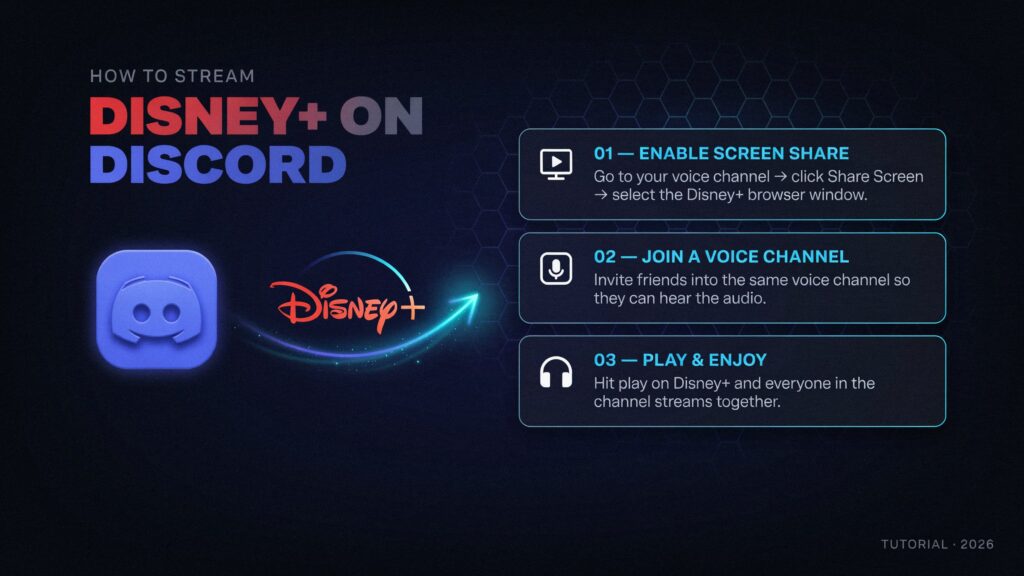
Stop fumbling around. Here’s the complete sequence that works:
1. Install the Discord desktop app if you haven’t. The browser version of Discord doesn’t let you adjust stream quality, and you’ll need those controls.
2. Open Discord, go to User Settings (gear icon, bottom left), then Advanced, and disable Hardware Acceleration. Fully quit and relaunch Discord.
3. Open Chrome or Edge — these work most reliably. Go to Settings and turn off hardware acceleration there too. Relaunch your browser.
4. Log into Disney+ in that browser and navigate to what you want to watch. Start playback so it’s rolling.
5. Back in Discord, go to User Settings → Activity Privacy → Add it → select your browser from the running applications. This lets Discord track your browser like a game window.
6. Join a voice channel in your Discord server. You’ll see a screen-share icon in the bottom left panel.
7. Click screen share, choose your browser window from the applications tab (not your entire desktop), set your resolution and framerate, and click Go Live.
8. Your viewers in the voice channel can now click your stream to watch it full-size.
That’s it. The whole process takes about five minutes once you know what you’re doing. The first time, before you know, it takes forty-five minutes of confusion and Googling.
The Part About Mac That’s Slightly Different
Mac users have one extra step that PC people don’t have to think about.
Apple’s privacy controls require you to manually grant screen recording permissions to Discord. Go to Apple menu, System Settings (or System Preferences on older macOS), then Privacy & Security, then Screen Recording. Find Discord in that list and make sure it’s toggled on. If Discord isn’t in the list at all, you might need to attempt a screen share first and let macOS prompt you to add it.
Without this, Discord literally cannot capture your screen regardless of what other settings you’ve changed. Mac users who hit a persistent black screen even after turning off hardware acceleration should check this first.
The Legal Elephant in the Room
Here’s what most guides mention briefly and then move on from.
Disney’s Subscriber Agreement explicitly says subscribers can’t rebroadcast, transmit, or publicly perform content without permission. Screen-sharing a Disney+ movie to fifty people in a Discord server falls into that gray-to-clearly-problematic territory. You’re not selling access. You’re not making money from it. But you are distributing copyrighted content beyond the license you paid for.
Realistically, Disney isn’t coming after you for a friend group movie night. Enforcement at that scale doesn’t happen. But the legal picture isn’t clean, and some streaming guides that tell you this is totally fine are glossing over what the terms actually say.
GroupWatch: The Option Nobody Thinks to Use First
Here’s the thing Disney built so you wouldn’t have to do any of this.
GroupWatch is Disney+’s built-in watch party feature. It launched in 2020, it’s available worldwide, and it’s completely legal. You pick a movie or show, click the GroupWatch icon — it looks like three people — and send an invite link to friends. Up to seven people total can join, including you. Playback is synchronized across all seven accounts. Anyone in the group can pause, rewind, or skip forward, which sounds chaotic but is actually kind of fun.
The catch is that everyone needs their own Disney+ subscription. You can’t use GroupWatch to share access — it’s for sharing an experience, not an account. And the communication layer is limited. You can react with emojis inside the app, but there’s no voice or text chat built in.
That’s exactly where Discord comes back in. Use Discord for the voice call and the chat while everyone runs GroupWatch on their own Disney+ accounts. That combination gets you legal synchronized viewing with actual real-time conversation happening alongside it. No black screen drama, no hardware acceleration wrestling, no ToS concerns.
It’s honestly the smarter setup for most people. The Discord screen-share method is better when some people in the group don’t have their own Disney+ subscription — but then you’re back in legally murkier territory.
Mobile Is a Different Story
Streaming Disney+ on Discord from a phone is more limited and more frustrating.
On iOS in particular, Apple’s restrictions on what third-party apps can capture means screen sharing in Discord is more constrained. You can share your screen in Discord on iOS — there’s a screen-sharing option in voice channels — but the audio from whatever you’re watching often doesn’t come through, and DRM protection on streaming apps tends to be stricter on mobile than in a desktop browser.
Android is somewhat better but still inconsistent. The general community advice is to handle movie-night streaming from a desktop or laptop and use your phone for the voice chat side of things rather than the streaming.
Final Words
Streaming Disney+ on Discord isn’t difficult once you know the hardware acceleration trick. That one change fixes the black screen problem that stops 90% of people before they get anywhere.
But let’s be real about the tradeoffs. Quality caps out at 720p if you’re not paying for Nitro. The legal footing is shaky if you’re sharing to a big audience. And honestly? If everyone in your group has their own Disney+ account, GroupWatch plus a Discord voice call is a better experience than screen-sharing. No setup headaches, no quality limits, no terms of service concerns.
The Discord screen-share method makes most sense for small groups where only one person has a subscription, or for people who want to keep everything inside a single Discord server without switching apps. For that specific situation, it works well once you’ve got the settings right.
My actual advice: try GroupWatch first. If it doesn’t solve your problem, then do the hardware acceleration fix and use Discord’s screen share. In that order.
FAQs
1. Why is Disney Plus showing a black screen when I screen share on Discord?
Disney+ uses DRM content protection that prevents screen capture by default. When combined with hardware acceleration in your browser and Discord, the video stream gets blocked before it reaches your viewers. Turning off hardware acceleration in both places is the standard fix.
2. Do I need Discord Nitro to stream Disney Plus?
No. Free users can screen share at 720p and 30fps, which is usable for movie watching. Nitro upgrades the quality ceiling to 1080p or 4K at 60fps if you want a sharper picture.
3. Is streaming Disney Plus on Discord legal?
Not cleanly. Disney’s Subscriber Agreement restricts rebroadcasting or transmitting content beyond your personal viewing. Enforcement against casual friend groups is essentially nonexistent, but it’s technically a terms of service violation. GroupWatch is the legal alternative.
4. Does turning off hardware acceleration affect my computer’s performance?
Somewhat. Hardware acceleration offloads video processing to your GPU, so disabling it pushes that work onto your CPU. On modern computers you likely won’t notice, but on older or lower-spec machines you might see slightly choppier local playback.
5. Can I stream Disney Plus on Discord from my phone?
In limited form, yes, but it’s unreliable — especially on iOS. Audio often fails to transmit, and mobile DRM is more aggressive. Use a desktop or laptop for the streaming end and your phone for voice chat.
6. How many people can watch my Disney Plus stream on Discord?
Up to 50 viewers can watch a single stream in a Discord voice channel simultaneously.
7. What browser works best for streaming Disney Plus on Discord?
Chrome and Edge are most commonly reported to work reliably. Firefox works but some users report more friction with the hardware acceleration settings. Whatever browser you use, make sure hardware acceleration is disabled in that specific browser.
8. What is GroupWatch and is it better than Discord screen sharing?
GroupWatch is Disney+’s built-in synchronized viewing feature that supports up to seven subscribers. It’s legal, doesn’t have the black screen problem, and works on more devices. The downside is everyone needs their own paid Disney+ account. Pairing GroupWatch with a Discord voice call for communication is often the smoother experience overall.
9. Why can my viewers hear me but not see the stream?
You’re probably sharing your entire desktop instead of the specific browser window showing Disney+. Switch to sharing the application window, not the full screen. Also check that you’ve added the browser as a registered application in Discord’s Activity Privacy settings.
10. Do I need to turn off hardware acceleration every time?
No. Once you’ve turned it off in Discord and your browser, the setting persists. You don’t need to redo it for every movie night — just the first time setup.
11. What if the audio isn’t coming through on the stream?
Make sure you’re screen-sharing the specific browser window rather than just capturing the video. When you share an application window in Discord, audio from that application is usually captured automatically. If it’s still not working, check that you haven’t muted the audio source in Discord’s stream settings.
12. Can I stream Disney Plus on Discord without installing the desktop app?
You can screen-share through Discord’s browser version, but you lose the ability to adjust stream quality settings. For anything beyond basic sharing you really want the desktop app installed.
Discover stories that stand at the top with The Pinnacle Magazine.